AI Image Expander
Upload an image and choose a target ratio. The AI continues the scene outwards — painting in what should exist beyond the frame instead of cropping or stretching what you already have.
Ready to expand
Upload an image and choose a target ratio
Expansion results
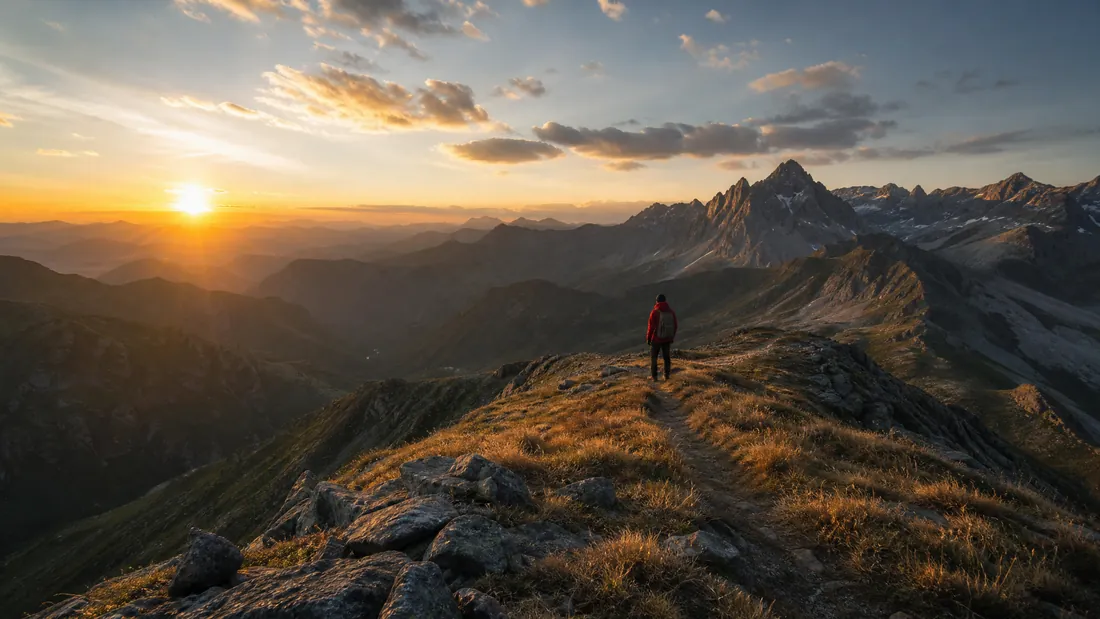
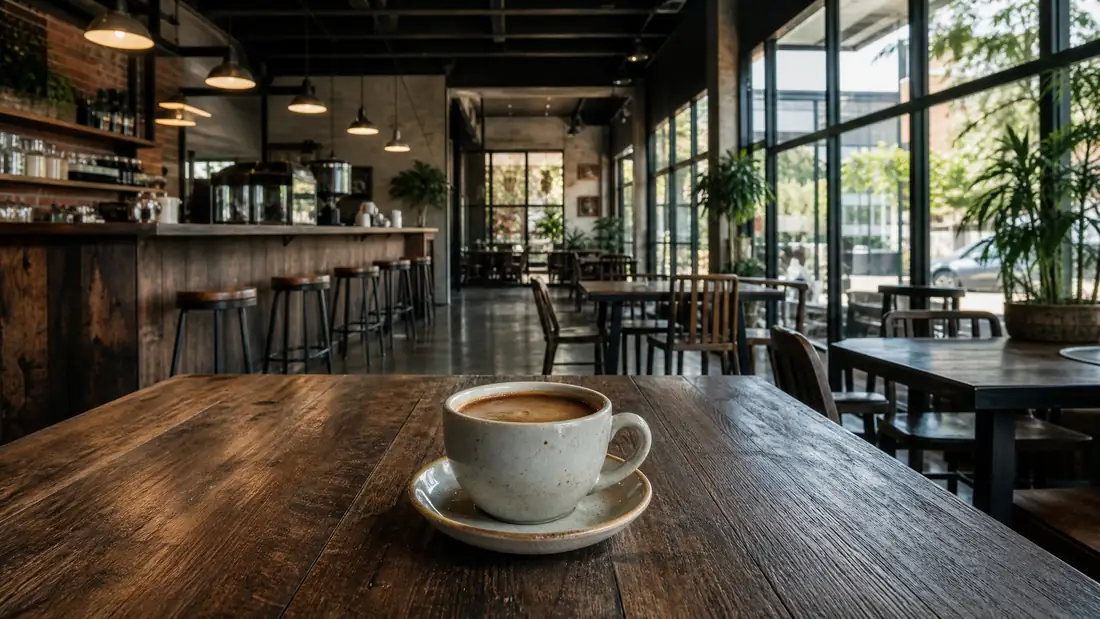
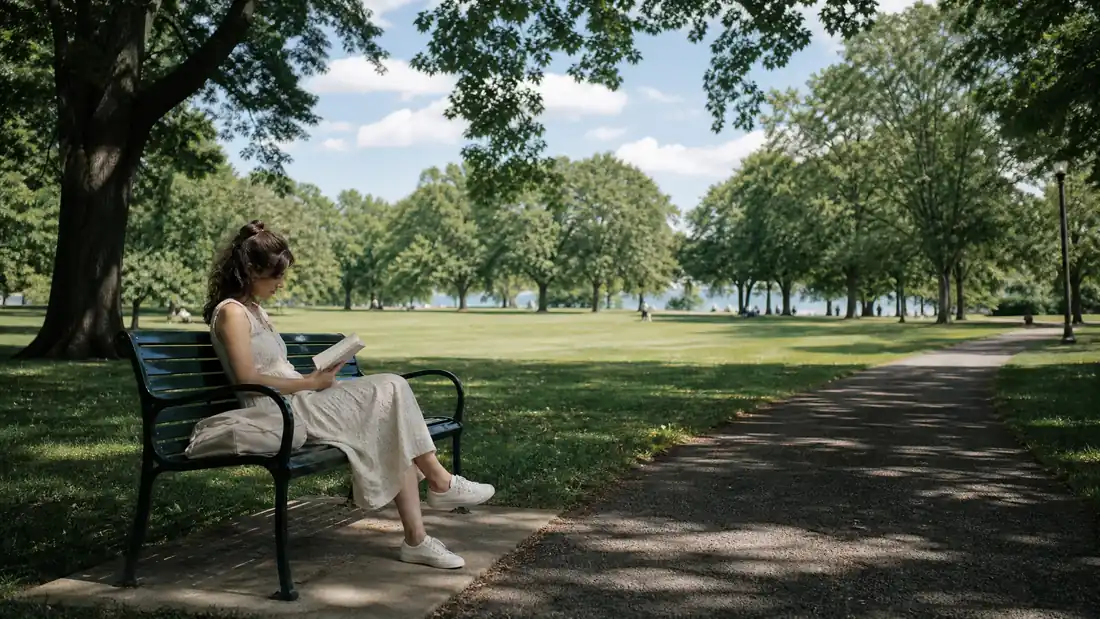
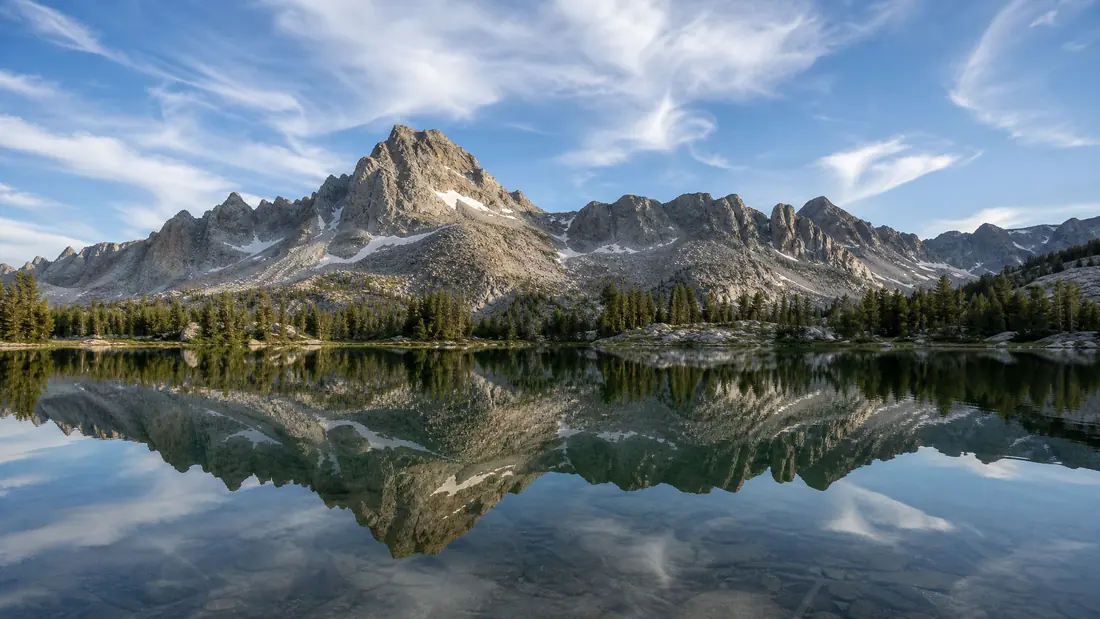
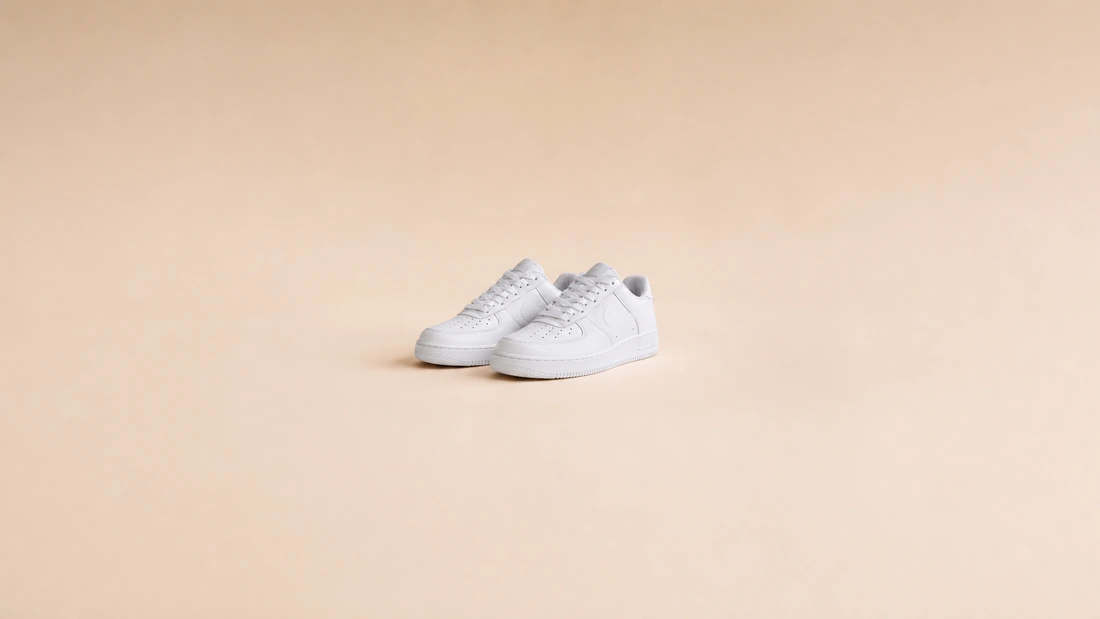
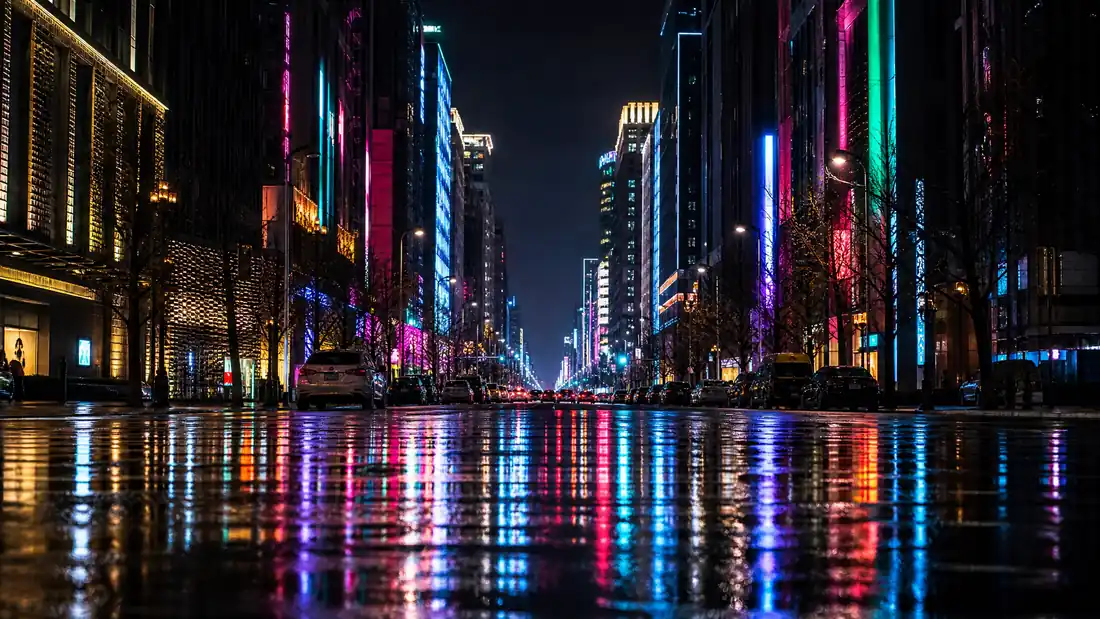
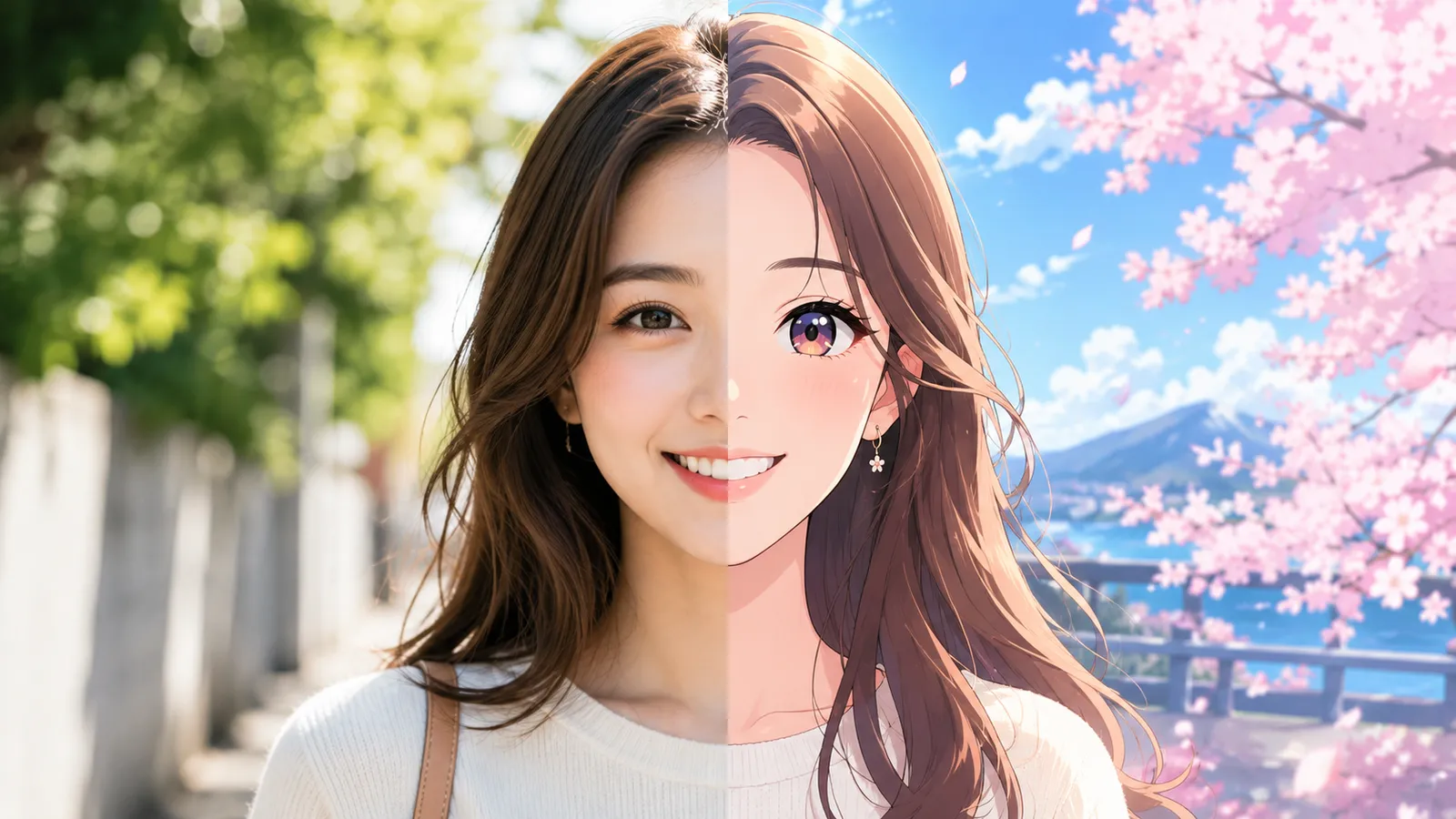
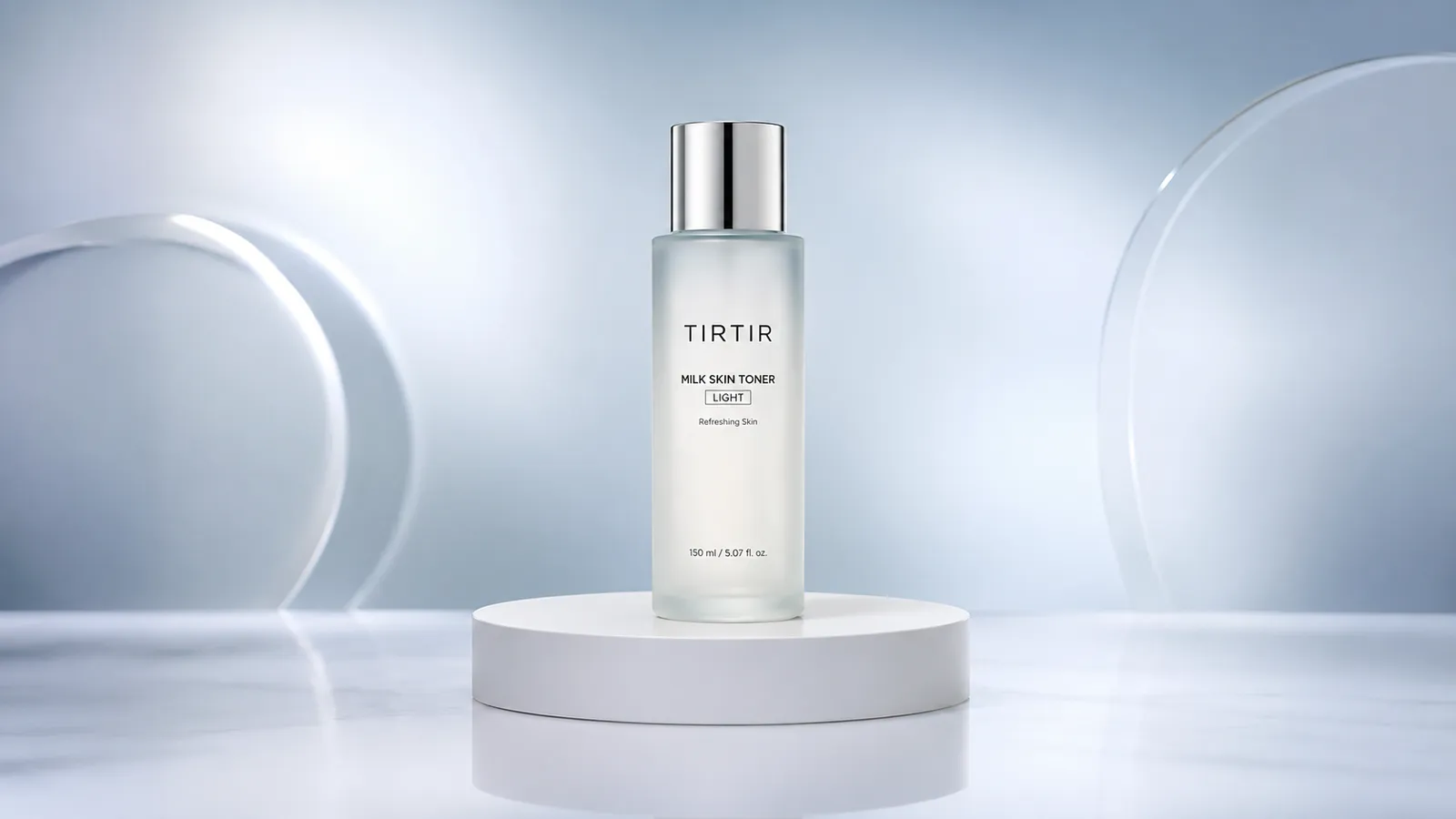
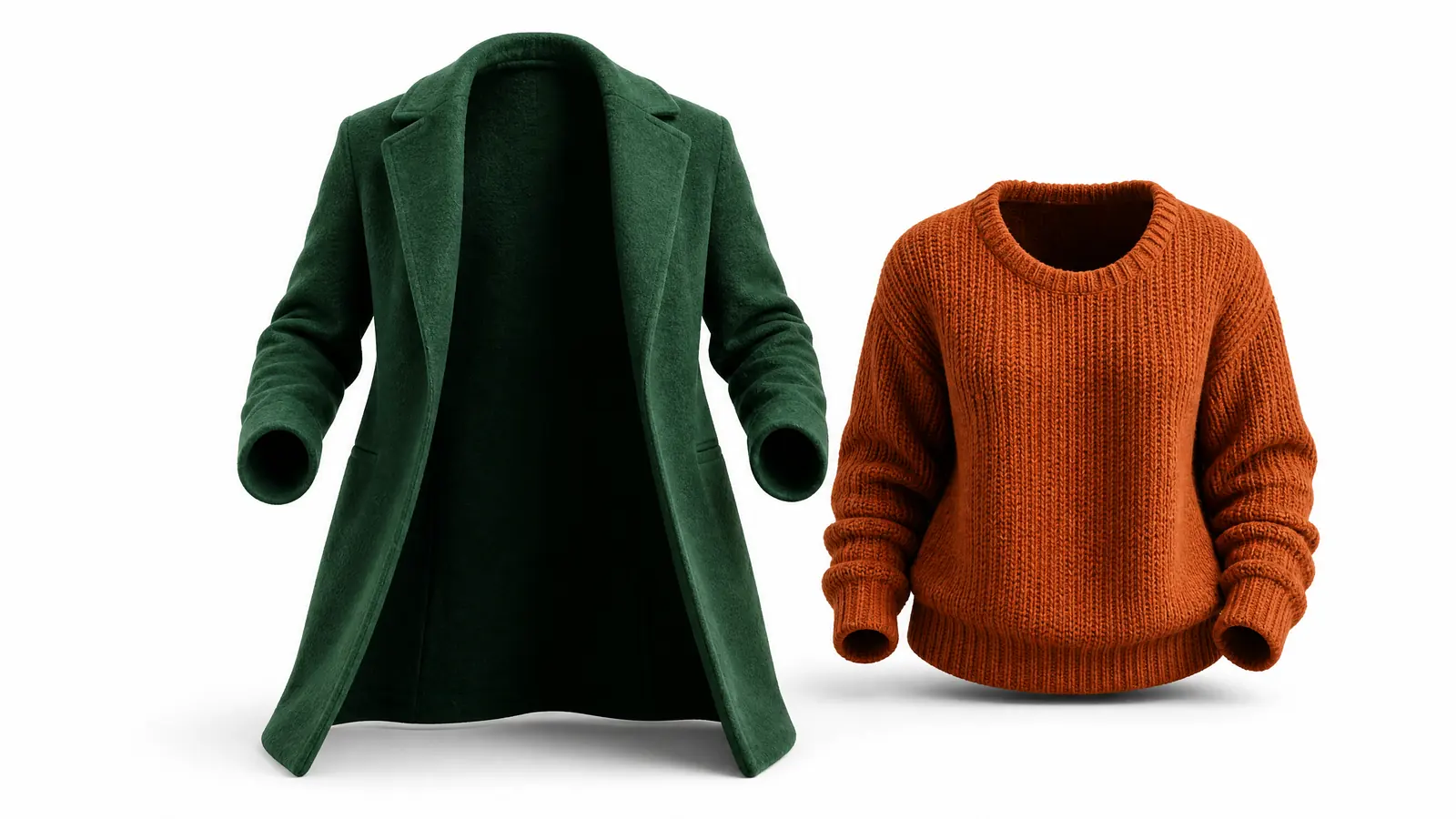
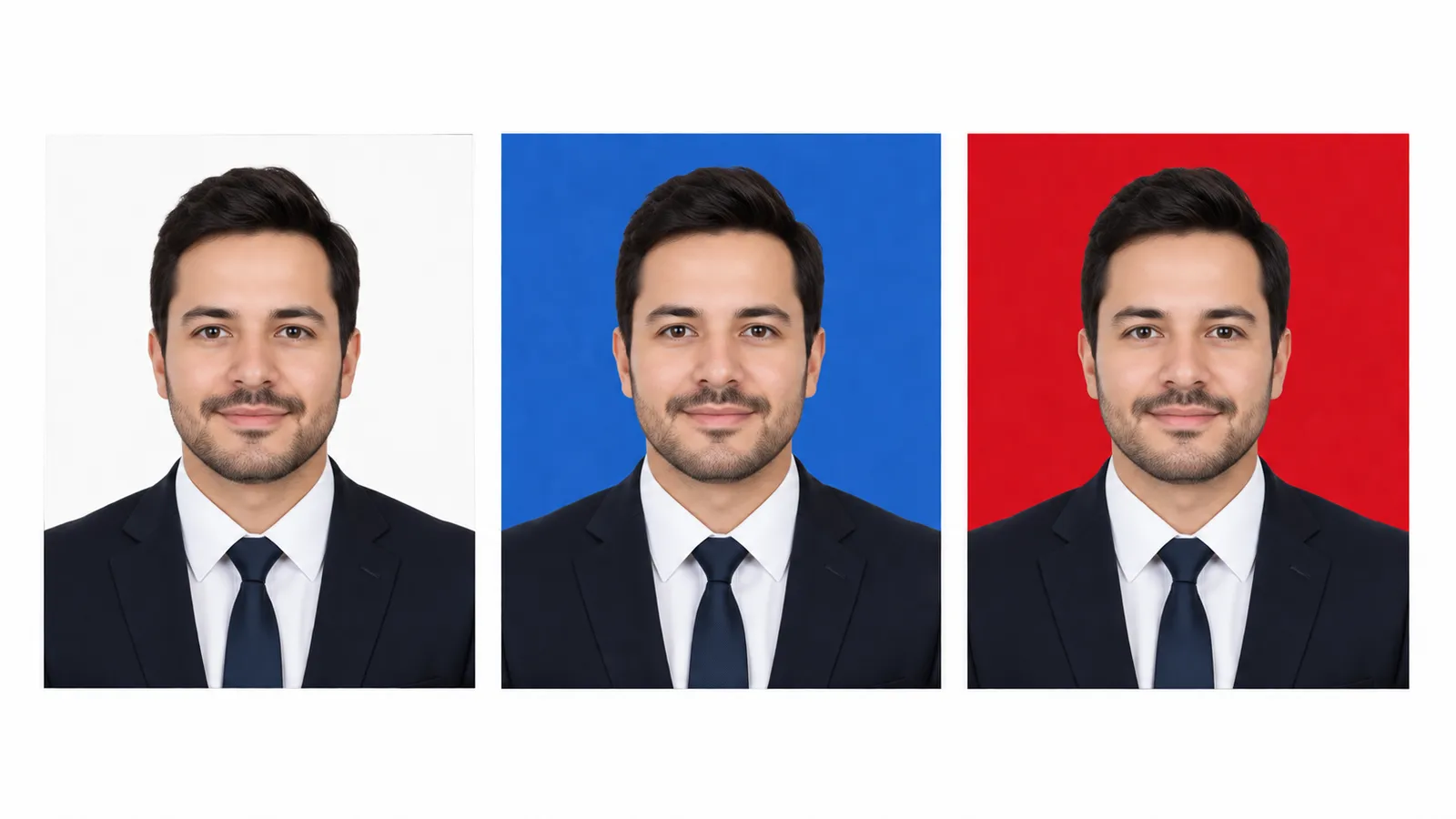
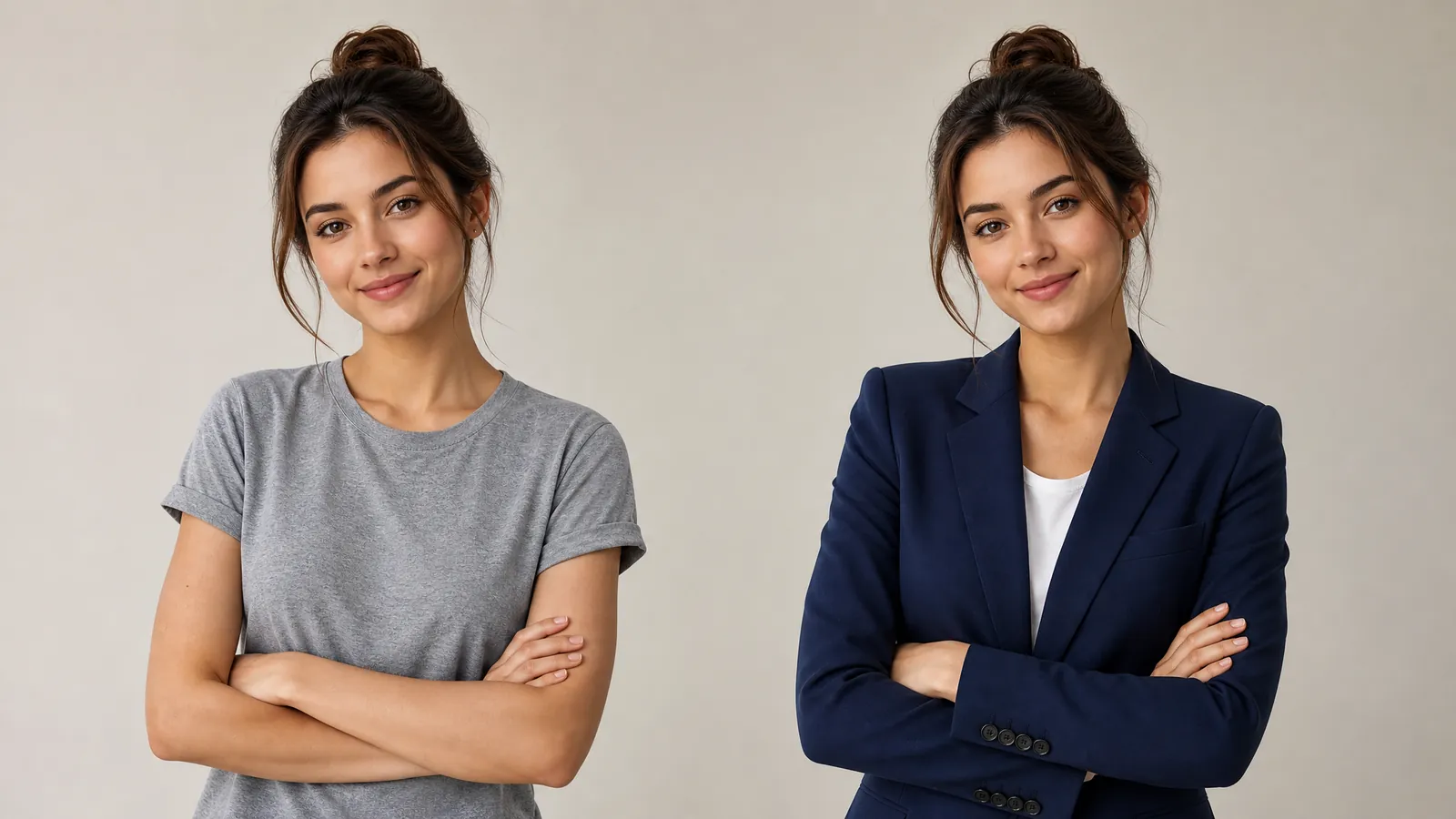
Samples from GPT Image 2 — the original area is untouched, the surroundings are generated.
What the expander does well
The point is not filling space — it is that nobody can tell which part was filled.
Not one original pixel moves
The prompt explicitly keeps the original at its own scale — no crop, no zoom, no re-rendering of the subject. Only the previously unseen surroundings are new.
Seams you cannot find
Generated areas continue the existing perspective, horizon, lighting direction, colour grade, grain and texture, so the whole frame reads as a single photograph.
Every platform in one place
Six common ratios one click apart: 16:9, 9:16, 1:1, 4:3, 3:4 and cinematic 21:9.
Three steps to a wider frame
No masks, no manual painting.
Upload an image
Click or drag the image whose ratio you want to change. JPG, PNG and WebP all work.
Choose a target ratio
Pick one of six ratios, and optionally hint at what the new areas should contain.
Generate and download
Under a minute. The original stays as it was; the surroundings continue naturally.
Where expansion helps
Any time the picture is right but the shape is wrong.
Landscape and portrait
Post the same shot to both orientations without cutting half the frame.
Product listings
Add margin around a product to meet a marketplace ratio and padding rules.
Covers and banners
Turn a vertical photo into a wide banner for a site header or campaign page.
Rescuing a tight crop
Framed too tightly at the time? Put the surroundings back afterwards.
Versus cropping or stretching
A wrong aspect ratio used to leave two bad options: lose content, or distort it.
Start free, upgrade anytime
Sign up for free credits — every image tool is powered by GPT Image 2. Upgrade for higher limits, faster generation, no watermark and commercial use.
FAQ
About the AI image expander
More AI image tools
View all tools
Wrong shape? Expand it
Upload an image, choose a ratio, and get a wider frame with nothing cropped.